

Introduction
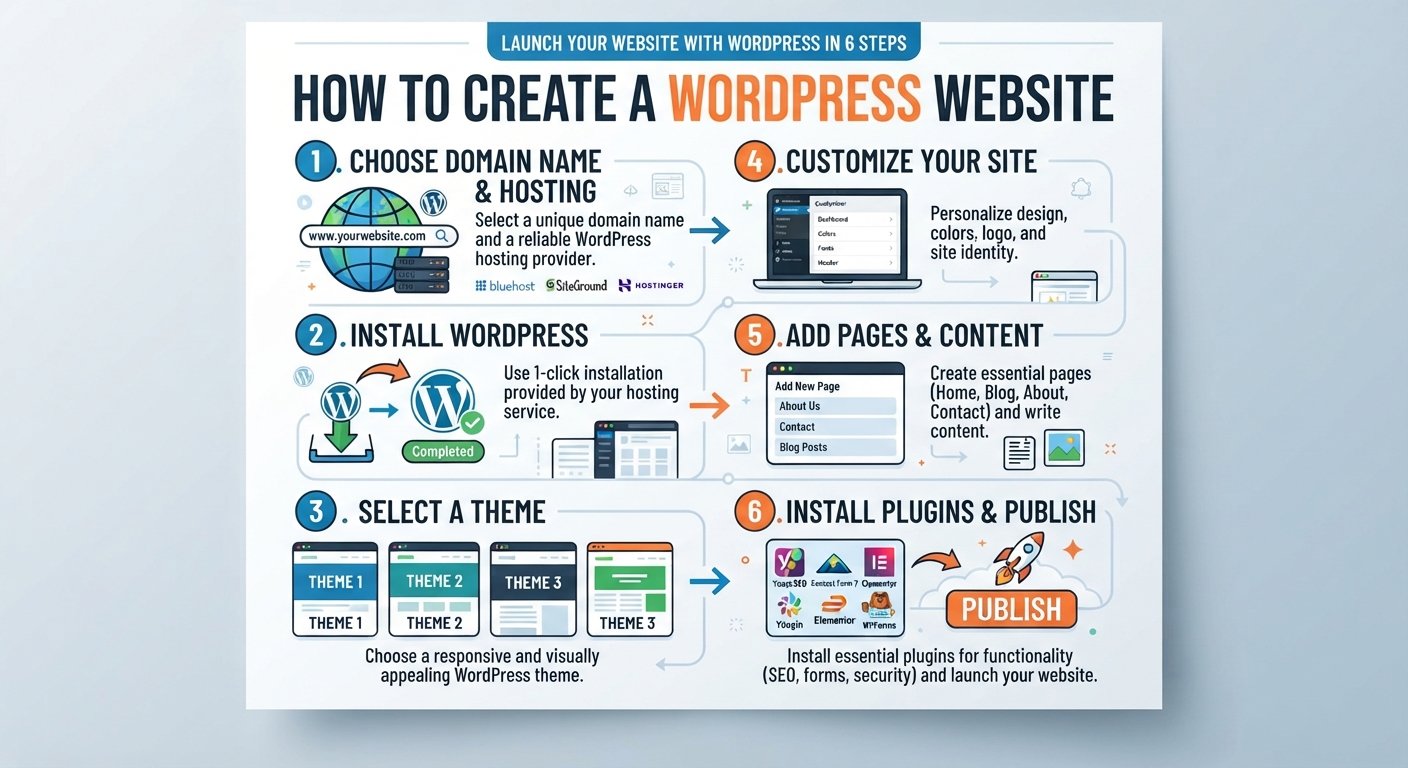
Creating a website wordpress has never been easier. Whether you’re a blogger, small business owner, or entrepreneur, learning how to create a WordPress website is one of the best investments you can make for your online presence. In this comprehensive guide, we’ll walk you through every step of the process, from choosing a hosting provider to launching your fully functional website.
WordPress powers over 43% of all websites on the internet, making it the most popular website builder and content management system (CMS) available today. The good news? You don’t need to be a technical expert to create a WordPress website.
1. Understanding WordPress and Its Benefits
1.1 What is WordPress?
WordPress is a free, open-source content management system that allows you to build, design, and manage a website without coding knowledge. Originally launched in 2003 as a blogging platform, WordPress has evolved into a versatile platform capable of powering everything from personal blogs to e-commerce stores and corporate websites.
1.2 Why Choose WordPress for Your Website?
When you decide to create a website wordpress, you’re choosing a platform with several key advantages:
- User-Friendly Interface: Navigate and manage your content with an intuitive dashboard
- Flexible and Scalable: Grow your website as your business expands
- SEO-Friendly: Built-in features to help optimize your site for search engines
- Extensive Plugin Library: Add functionality without hiring developers
- Active Community: Access thousands of tutorials, forums, and resources
- Cost-Effective: Free software with affordable hosting options
2. Choosing Your WordPress Hosting Provider
2.1 Types of WordPress Hosting
Before you learn how to create a WordPress website, you need to choose appropriate hosting. There are three main types:
Shared Hosting
Shared hosting is the most budget-friendly option where your site shares server resources with other websites. This is ideal if you’re just starting and expect moderate traffic.
Managed WordPress Hosting
Managed hosting is specifically optimized for WordPress websites. The provider handles updates, security, and backups, freeing you to focus on content creation.
Virtual Private Server (VPS)
VPS hosting offers more control and better performance than shared hosting but requires more technical knowledge to manage.
2.2 Top WordPress Hosting Providers
Popular hosting providers for building a website wordpress include:
- Bluehost: Officially recommended by WordPress.org
- SiteGround: Known for excellent customer support
- Kinsta: Premium managed WordPress hosting
- DreamHost: Long-standing reliable option
- HostGator: Affordable shared hosting for beginners
3. How to Create a WordPress Website: Step-by-Step Installation
3.1 Step 1: Register Your Domain Name
Your domain name is your website’s address (e.g., www.example.com). When you create a website wordpress:
- Choose a domain name that reflects your brand
- Keep it short, memorable, and easy to spell
- Use keywords relevant to your business or niche
- Aim for a .com extension if possible
- Register for at least 2 years to boost SEO credibility
Most hosting providers offer domain registration alongside hosting services.
3.2 Step 2: Set Up Your Hosting Account
After selecting a hosting provider, follow these steps:
- Choose a hosting plan that matches your needs
- Complete the payment process
- Access your hosting control panel (usually cPanel)
- Verify your email address
- Log in to your hosting account
3.3 Step 3: Install WordPress
Option A: One-Click Installation (Recommended for Beginners)
Most quality hosting providers offer one-click WordPress installation:
- Log in to your hosting control panel
- Find “WordPress” or “Website Builders” section
- Click “Install” or “Setup”
- Select your domain name
- Create an admin username and password
- Click “Install”
Option B: Manual Installation
For advanced users, manual installation involves:
- Downloading WordPress from WordPress.org
- Uploading files via FTP
- Creating a MySQL database
- Configuring the wp-config.php file
- Running the WordPress installation wizard
4. Initial WordPress Configuration
4.1 Accessing Your WordPress Dashboard
Once installed, create a website wordpress that’s properly configured:
- Visit yourwebsite.com/wp-admin
- Enter your admin username and password
- You’ll see the WordPress dashboard
4.2 Configure Basic Settings
Navigate to Settings in your dashboard and configure:
- Site Title: Your website’s name
- Tagline: A brief description of your site
- Site URL: Ensure it matches your domain
- Timezone: Set to your local timezone
- Date Format: Choose your preferred format
- Permalink Structure: Select “Post name” for SEO optimization
4.3 Set Your Site Visibility
Under Settings → Reading:
- Choose whether search engines can index your site
- Set your homepage display preference
- Establish your posts per page settings
5. Choosing and Installing a WordPress Theme
5.1 What is a WordPress Theme?
A theme controls the visual appearance and layout of your website wordpress. Themes are templates that determine how your content is displayed to visitors.
5.2 Finding the Right Theme
When you create a website wordpress, selecting the right theme is crucial:
- Visit WordPress.org/themes for free themes
- Explore premium theme marketplaces like ThemeForest
- Look for themes optimized for mobile devices
- Choose designs relevant to your industry
- Verify recent updates and active support
5.3 Installing Your Theme
- Go to Appearance → Themes in your dashboard
- Click “Add New” or “Upload Theme”
- Find and install your chosen theme
- Click “Activate” to apply it to your website
- Customize colors, fonts, and layouts in the Theme Customizer
6. Essential WordPress Plugins for Your Website
6.1 Why Use Plugins?
Plugins extend WordPress functionality. Installing the right plugins makes how to create a WordPress website much more powerful.
6.2 Must-Have Plugins
SEO Optimization
- Yoast SEO: Guides content optimization for search engines
- All in One SEO: Comprehensive SEO management tool
Security
- Wordfence: Firewall and malware scanning
- iThemes Security: Complete security suite
Performance
- WP Super Cache: Improves website speed
- Imagify: Automatic image optimization
Backup and Recovery
- UpdraftPlus: Automated backup solution
- BackWPup: Scheduled backup tool
6.3 How to Install Plugins
- Go to Plugins → Add New
- Search for your desired plugin
- Click “Install Now”
- Click “Activate”
- Configure plugin settings as needed
7. Creating Content on Your Website
7.1 Understanding Posts vs. Pages
When you create a website wordpress, understanding content types is essential:
Pages are static content (About Us, Contact, Services) Posts are time-stamped content sorted chronologically (blog articles, news)
7.2 Creating Your First Post
- Click Posts → Add New in your dashboard
- Write your compelling title
- Compose your content in the editor
- Add featured images for visual appeal
- Set categories and tags for organization
- Optimize for SEO using your SEO plugin
- Click “Publish” to go live
7.3 Creating Essential Pages
Every professional website wordpress should include:
- Homepage: Your site’s main introduction
- About Page: Build trust with your audience
- Contact Page: Enable visitor communication
- Services/Products Page: Showcase your offerings
- Privacy Policy: Required for legal compliance
8. Customizing Your Website Design
8.1 Using the WordPress Customizer
To personalize how to create a WordPress website:
- Go to Appearance → Customize
- Preview changes in real-time
- Modify:
- Site header and colors
- Widget areas
- Navigation menus
- Logo and favicon
8.2 Adding Custom Menus
Create an intuitive navigation structure:
- Go to Appearance → Menus
- Create a new menu
- Add pages and custom links
- Set menu display location
- Arrange items in your preferred order
8.3 Creating Sidebar Widgets
Add dynamic content to your sidebar:
- Go to Appearance → Widgets
- Drag widgets to your sidebar area
- Configure widget settings
- Popular widgets include: Recent Posts, Categories, Search
9. Optimizing Your Website for Search Engines
9.1 SEO Fundamentals for WordPress
When you create a website wordpress with SEO in mind, you improve visibility:
- Use your main keyword (“website wordpress”) naturally throughout content
- Optimize meta descriptions for search results
- Build internal links between related posts
- Ensure mobile responsiveness
- Improve page loading speed
9.2 On-Page SEO Best Practices
For each post or page:
- Include your target keyword in the title
- Write compelling meta descriptions (155-160 characters)
- Use header tags (H1, H2, H3) strategically
- Add descriptive alt text to images
- Include internal links to relevant content
- Optimize URL slugs for readability
9.3 Technical SEO Considerations
- Enable SSL/HTTPS encryption
- Create an XML sitemap
- Submit your site to Google Search Console
- Optimize robots.txt file
- Fix broken internal links
10. Setting Up Essential Features
10.1 Creating a Contact Form
Most WordPress websites benefit from contact forms:
- Install WPForms or Contact Form 7
- Create a new form with desired fields
- Set up email notifications
- Add form to your Contact page
- Test submission functionality
10.2 Adding a Search Function
Built into most WordPress themes, but ensure:
- Search box is visible and functional
- Search results page displays relevant posts
- User experience is smooth and intuitive
10.3 Implementing Social Media Integration
Connect your website wordpress with social platforms:
- Install social sharing plugins
- Add social media follow buttons
- Embed social feeds
- Link to your social media profiles
11. Maintenance and Security Best Practices
11.1 Regular WordPress Updates
Keep your website secure and current:
- Update WordPress core regularly
- Update all themes and plugins
- Delete unused themes and plugins
- Check for compatibility before updating
11.2 Backup Your Website
Protect your data with regular backups:
- Use automated backup plugins
- Store backups off-site
- Test backup restoration process
- Maintain monthly backup archive
11.3 Enhance Website Security
When you create a website wordpress, security must be a priority:
- Use strong passwords (minimum 12 characters)
- Limit login attempts
- Keep plugins and themes updated
- Install security monitoring plugins
- Disable file editing
- Use HTTPS encryption
- Regular malware scans
12. Driving Traffic to Your Website
12.1 Content Marketing Strategy
Create valuable, relevant content:
- Publish consistently (weekly posts recommended)
- Target long-tail keywords
- Address your audience’s pain points
- Use keyword research tools
- Create comprehensive, in-depth articles
12.2 Email Marketing Integration
Build your audience:
- Install email subscription plugin
- Create lead magnets
- Segment your email list
- Send regular newsletters
- Include email capture on high-traffic pages
12.3 Social Media Promotion
Amplify your reach:
- Share new posts across all platforms
- Engage with your audience
- Use relevant hashtags
- Join industry-related conversations
- Repurpose content for different platforms
13. Analyzing Your Website Performance
13.1 Installing Google Analytics
Track visitor behavior:
- Create Google Analytics account
- Get your tracking code
- Install MonsterInsights plugin
- Connect Google Analytics to WordPress
- Monitor traffic trends and user behavior
13.2 Key Metrics to Monitor
When you create a website wordpress, track these important metrics:
- Traffic: Page views and unique visitors
- Bounce Rate: Percentage of visitors leaving immediately
- Time on Page: How long visitors spend on content
- Conversion Rate: Percentage completing desired actions
- Traffic Sources: Where your visitors originate
13.3 Using Google Search Console
Monitor your website’s search presence:
- Verify your site in Google Search Console
- Monitor search performance
- Check for indexing issues
- Monitor security alerts
- Optimize for featured snippets
14. Common WordPress Mistakes to Avoid
14.1 Technical Mistakes
- Ignoring WordPress core and plugin updates
- Using weak passwords and poor security practices
- Failing to back up your website regularly
- Installing too many plugins that slow performance
- Not optimizing images for web use
14.2 Content Mistakes
- Publishing low-quality, thin content
- Keyword stuffing instead of natural optimization
- Neglecting to update old content
- Having no clear call-to-action (CTA)
- Inconsistent publishing schedule
14.3 Design Mistakes
- Choosing themes that aren’t mobile-responsive
- Cluttering pages with too many ads
- Poor navigation structure
- Slow page loading times
- Outdated design and layout
15. Advanced Features After Launch
15.1 E-commerce Functionality
Expand your website wordpress to sell products:
- Install WooCommerce plugin
- Set up product listings
- Configure payment gateways
- Establish shipping settings
- Manage inventory
15.2 Membership Sites
Create exclusive content:
- Use MemberPress plugin
- Set subscription levels
- Restrict content access
- Manage member accounts
15.3 Online Courses
Build educational content:
- Install LearnDash plugin
- Create structured courses
- Track student progress
- Manage certifications
Conclusion
Learning how to create a WordPress website is an achievable goal for anyone, regardless of technical experience. By following this comprehensive guide, you’ve learned:
- How to choose appropriate hosting and register your domain
- Step-by-step WordPress installation processes
- Theme selection and customization techniques
- Essential plugin installation and configuration
- Content creation and publishing strategies
- SEO optimization best practices
- Security implementation and maintenance routines
- Analytics tracking and performance monitoring
Your website wordpress is now ready to grow your online presence, connect with your audience, and achieve your business goals. Remember that building a successful website is an ongoing process. Continue learning, experimenting with new features, and refining your strategy based on analytics and user feedback.
Start your WordPress journey today, and join millions of other website owners who have chosen this powerful, flexible platform. Your success begins with that first step.